
How to send property enquiries from your WordPress website to Street CRM
Table of Contents
Table of Contents
Complete your Street integration with Property Hive by automatically sending website property enquiries directly into your CRM.
As well as importing your property listings from Street, Property Hive can automatically send property enquiries back to your CRM. The result is a seamless connection between your website and Street, helping your team spend less time on admin, respond faster to enquiries, and manage everything from one place
Why connect your website to Street?
Your website should do more than showcase properties. It should work alongside your CRM, automatically keeping the information your team needs where they already manage their day to day business.
By connecting your Property Hive website to Street, every website enquiry is sent directly to your CRM. The result is a more connected workflow, less manual admin, and faster responses for your buyers, tenants and landlords.
Keep your website and CRM connected
Property Hive doesn’t just import your property listings from Street. It can also send website enquiries back to your CRM automatically, creating a seamless connection between your website and Street. With your properties and enquiries working together, everything stays in sync and easy to manage.
Respond faster to every enquiry
Every website enquiry is sent to Street as soon as it’s submitted, so your team can respond quickly without manually copying contact details or forwarding emails. Faster responses mean a better experience for your applicants and more opportunities to win instructions.
Spend less time on admin
Automating website enquiries removes repetitive manual tasks, giving your team more time to focus on conversations instead of data entry. Less administration means more time helping buyers, tenants and landlords.
How Property Hive sends website enquiries to Street
When someone submits a property enquiry through your Property Hive website, Property Hive automatically sends their enquiry directly to Street.
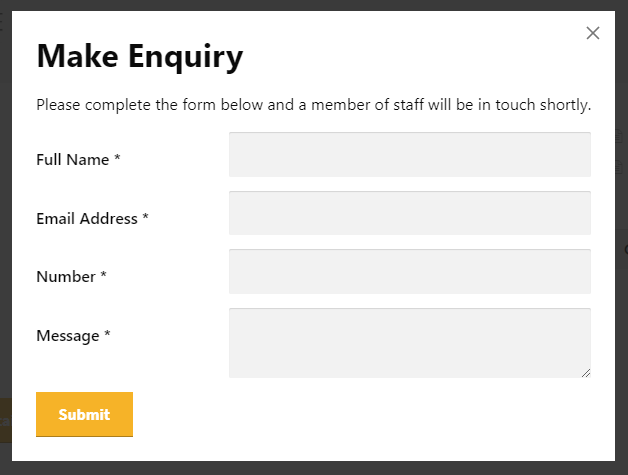
The enquiry appears in Street alongside your property data, allowing your team to continue managing enquiries from the CRM they already use. There’s no need to manually copy contact details or process enquiries received by email.
Once configured, every new website enquiry is sent automatically.
What you’ll need to send website enquiries to Street
To send website enquiries to Street, you’ll need:
- The free version of Property Hive installed on your WordPress website.
- An Import or All Features package, which includes both Property Import and website enquiry exports (free 7-day trial available).
- An active Street property import, so your properties are already being imported into Property Hive.
Once you’re set up, simply follow the steps below to enable website enquiry exports. If you need a hand along the way, our support team is always happy to help.
Download Property Hive for free
Start your free 7 day import trial
How to enable website enquiry exports
1. Create your property import
To start sending website enquiries to Street from your WordPress website, you’ll need to have an import set up first. Our complete guide on how to import properties from Street to WordPress can guide you through this process.
2. Generate your Street API key
Before Property Hive can connect to Street, you’ll need to generate an API key from your Street account.
Log into your Street customer area and navigate to Settings > Applications > Create new application.
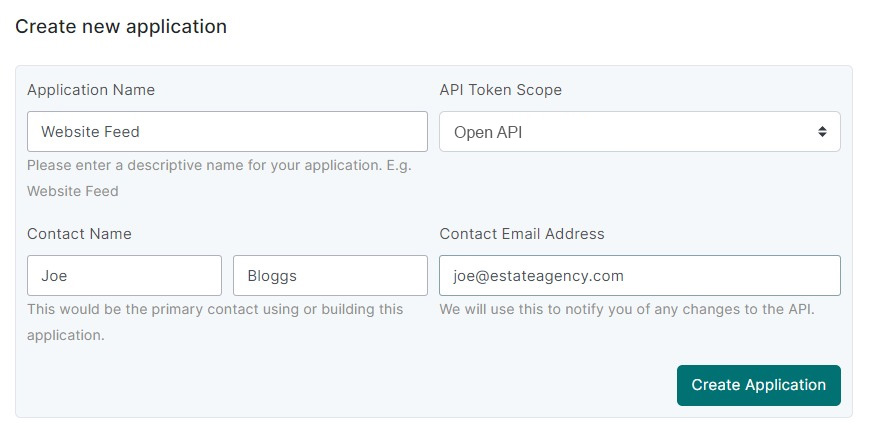
When completing the form, make sure you choose Open API as the API Token Scope.
3. Activate the export Street enquiries feature on the Property Hive dashboard
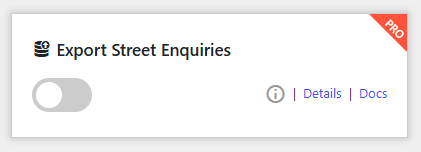
Enable the Export Street Enquiries feature in Property Hive.
Navigate to Property Hive > Settings > Features > Street Enquiries to activate the feature.
4. Enter your Street API details
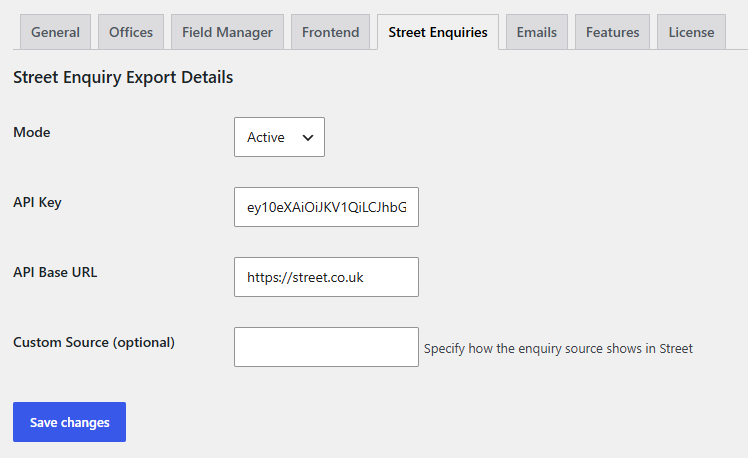
Navigate to Property Hive > Settings > Street Enquiries. Change the Mode to Active, then paste in the API details you generated in Street.
What happens after setup?
Once the integration is active, property enquiries submitted through your Property Hive website are sent to Street in real time.
There’s no need to manually transfer enquiry details or wait for them to be processed. Each new enquiry is passed to Street as soon as it is submitted, ready for your team to manage from within the CRM.
Frequently asked questions
Which Property Hive package do I need?
Website enquiry exports to Street are included with our Import and All Features packages. These packages also include Property Import, allowing you to keep your property listings up to date and send website enquiries to Street from a single integration.
Do I need a Street API key?
Yes. Before Property Hive can send website enquiries to Street, you’ll need to generate an API key from your Street account. The setup guide above shows you where to find it and how to connect it to Property Hive.
Are website enquiries sent to Street automatically?
Yes. Once the integration has been configured, every enquiry submitted through your Property Hive website is sent directly to Street in real time. There’s no need to manually copy enquiry details between your website and CRM.
What happens if there’s an error sending an enquiry?
If Property Hive is unable to send an enquiry to Street, the WordPress administrator will receive an email containing details of the error. This helps you identify and resolve any issues quickly.
Will I still receive website enquiry emails?
Yes. Sending website enquiries to Street doesn’t stop your website’s normal enquiry notification emails, so you can continue receiving them as usual.
Can Property Hive send website enquiries to other CRMs?
In addition to Street, Property Hive can also send website enquiries to Alto, Reapit, Loop, Apex27, Agency Pilot, Rex, Arthur, Jupix and Kato. Visit our CRM integrations page to see the latest supported integrations.
How do I get support?
Customers on our Import and All Features packages receive priority support. If you need any help setting up the integration or have any questions, simply get in touch and we’ll be happy to help.