
Introducing the new Property Hive onboarding wizard
Table of Contents
Table of Contents
There’s a lot you can do with Property Hive. That’s very much the point.
No two estate agencies work in quite the same way. We have Property Hive users across different countries and property markets, from independent agents to businesses with multiple offices.
Over the years, we’ve added more tools, features and ways to customise Property Hive. That gives estate agents and developers the freedom to build a setup that suits them.
But when you’re installing Property Hive for the first time, you probably don’t want to spend ages figuring out which settings you need and where to find them.
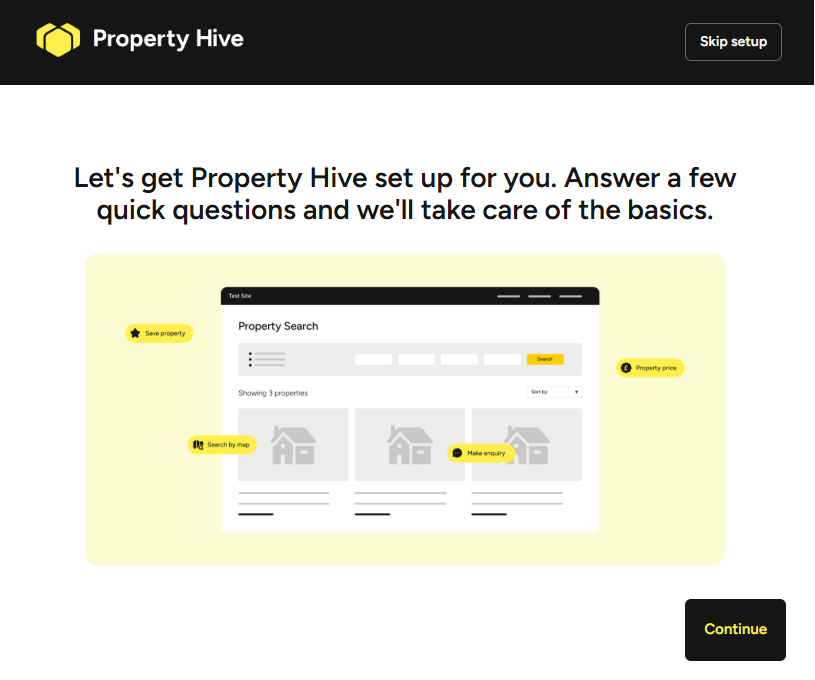
That’s why we’ve introduced a new onboarding wizard. It takes you through a few simple questions, gets the important settings in place and helps you get started without having to figure everything out on day one.
Get set up in six simple steps
When you activate Property Hive for the first time, you’ll now have the option to complete our new onboarding wizard.
It walks you through six steps, bringing together the key settings and decisions in one place.
Here’s what you can do:
- Choose your property sectors. Whether you work in residential sales, lettings, commercial property or a combination of these.
- Set your country. Property Hive will apply the appropriate currency and regional settings.
- Add your office details. Enter your main office’s address and contact information.
- Choose how you’ll use Property Hive. Import properties from your CRM, use Property Hive as your CRM, upload properties to portals or simply get your property website set up for now.
- Connect your subscription. Already have a Property Hive subscription? Add your licence key. Otherwise, you can continue with the free version or start a free seven-day trial to explore the paid features.
- Add demo data. Bring in sample properties, contacts and other records so you can explore how Property Hive works before adding your own.
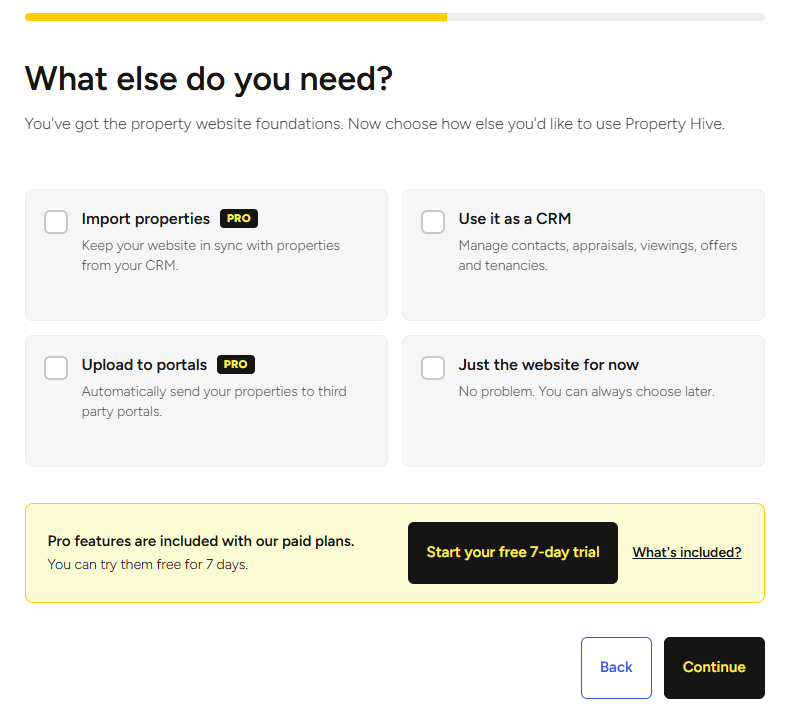
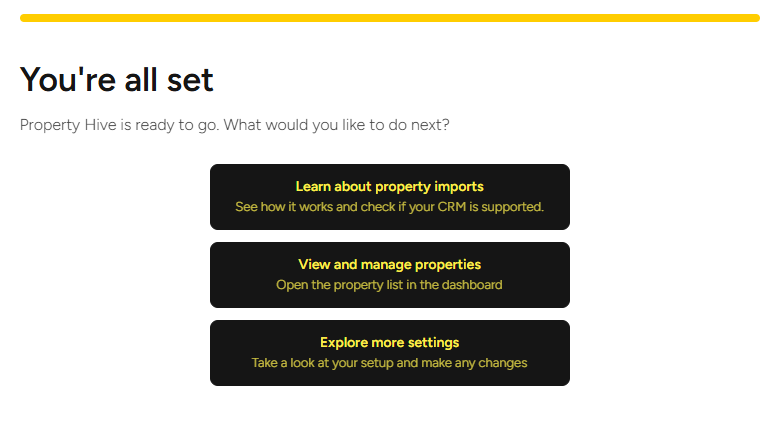
Once you’ve worked through the steps, you’ll have the basics in place and can start adding properties, exploring your settings or finding out more about connecting your CRM.
Start with what you need
We’ve deliberately kept the wizard focused on the things most people need when they’re getting started.
Property Hive has plenty of other settings and ways to customise how things work, but you don’t need to figure all of those out on day one.
If all you need right now is a property website, that’s fine. If you’re connecting an existing CRM or want to use Property Hive to manage your agency, the wizard helps you get started with those options too.
And nothing’s set in stone. You can revisit your settings, add more tools and change how things work whenever you need to.
The idea isn’t to make every Property Hive setup work the same way. It’s simply to make those first steps a little easier.
Ready to build better?
You’ll find the new onboarding wizard in the free Property Hive plugin when you activate Property Hive for the first time.
You can follow the steps to get everything set up, or skip the wizard if you’d prefer to do things yourself.
Either way, you’ve got all the usual Property Hive tools and settings ready when you need them.